Share logs from the app (all platforms)
The quickest way to send your logs is directly from the app. This works on desktop and mobile, including iOS and Android:
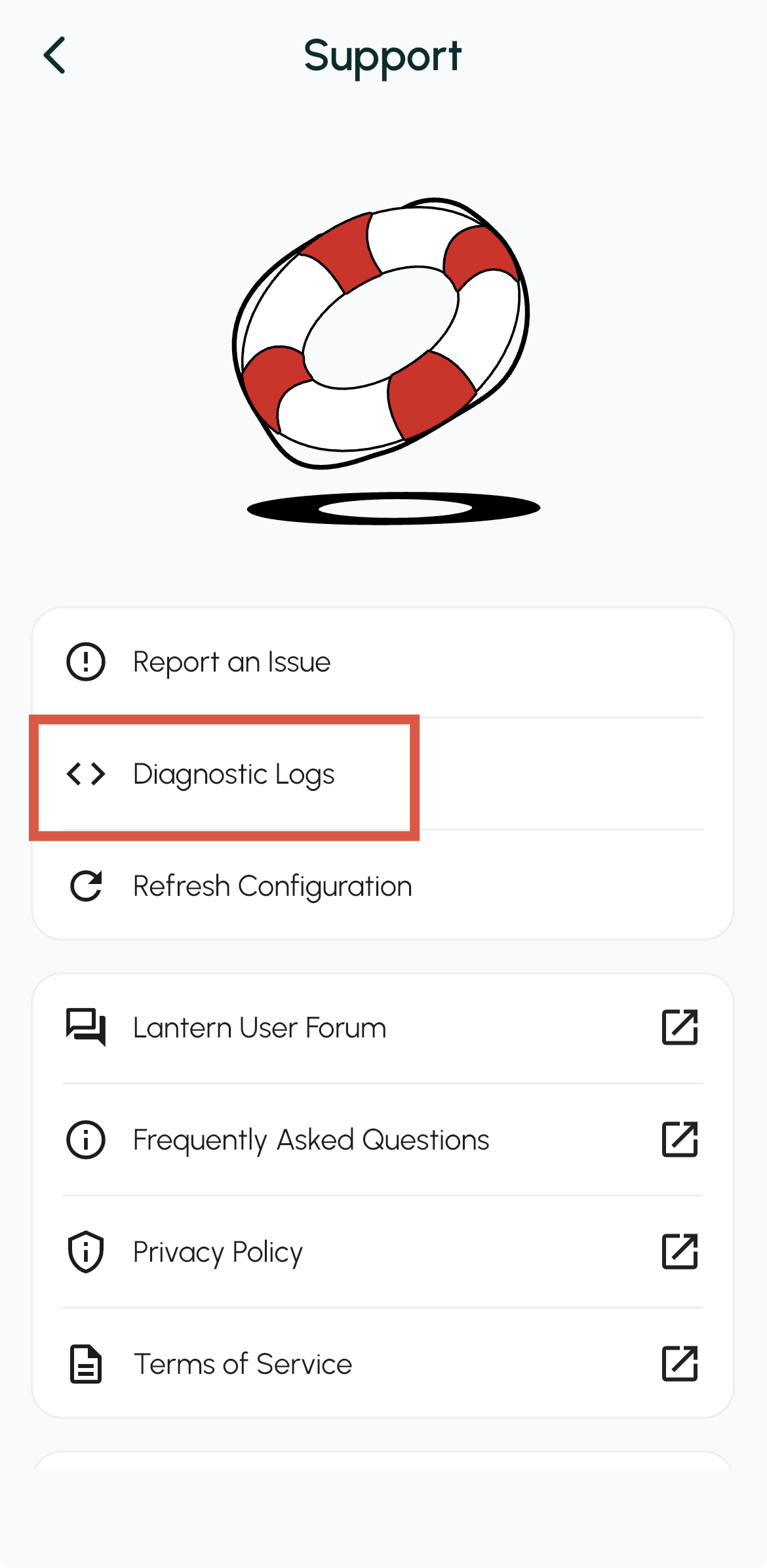
- Open Lantern and go to Support.
- Tap Diagnostic Logs.
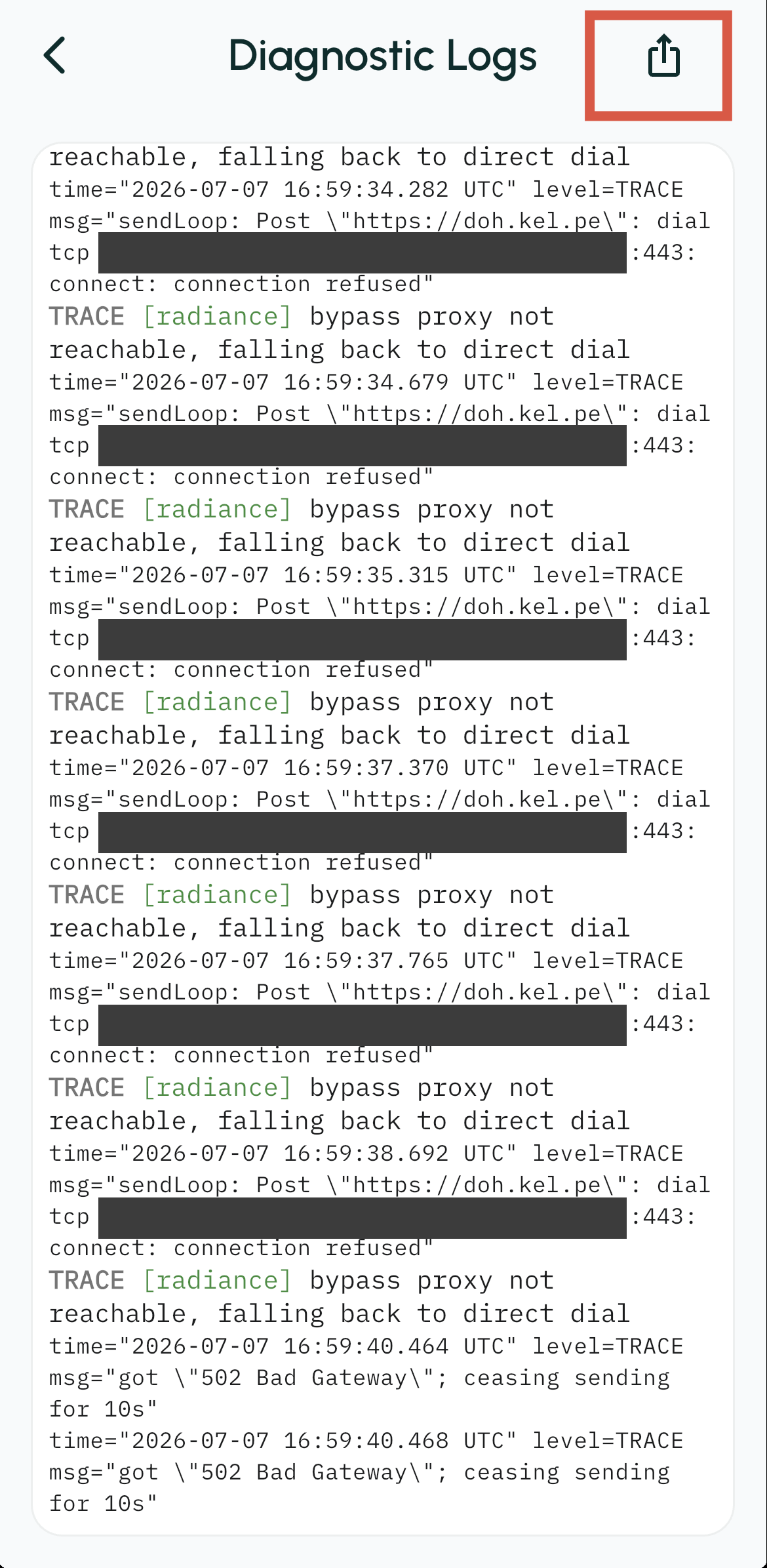
 On the Diagnostic Logs screen, tap the Share icon in the top-right corner.
 Choose how to send the logs (for example, email them to support@lantern.io) and send.
Retrieve the log file manually (desktop)
If you'd rather attach the log file yourself, use the steps for your version below.
Version 9 (current)
Windows
Open File Explorer and go to C:\Users\Public\Lantern\logs
macOS
Open Terminal and run: open /Users/Shared/Lantern/Logs
Linux
Open Terminal and run: xdg-open ~/.local/share/org.getlantern.lantern/logs
Select the newest lantern.log file and attach it to an email to support@lantern.io.
Advanced - VPN service log (Windows and Linux only)
Lantern also runs a separate background service that handles the VPN connection and keeps its own log. Support may request this for connection or "no traffic" problems.
- Windows: Open File Explorer, paste
C:\ProgramData\Lanterninto the address bar and press Enter. (This folder is hidden by default.) - Linux: Open Terminal and run:
xdg-open /var/log/lantern
Attach the newest lantern.log from that folder in addition to the log above.
Legacy (before Version 9)
Windows
In File Explorer, enable hidden items (View menu), then go to C:\Users\<username>\AppData\Roaming\Lantern\Logs
macOS
Open Terminal and run: open ~/Library/Logs/Lantern
Linux
Open Terminal and run: xdg-open ~/.lantern/logs
Select the newest lantern.log file and send it to support@lantern.io.
Was this article helpful?
That’s Great!
Thank you for your feedback
Sorry! We couldn't be helpful
Thank you for your feedback
Feedback sent
We appreciate your effort and will try to fix the article